.png)

SMS
Short Message Service (SMS) adds to send/receive to SMS enabled numbers via the PBX portal.
*Note: SMS must first be enabled through features in the Numbers tab.
Using SMS/Chat
1. SMS and Chat will appear like Chat BETA today, with a tag for SMS or Chat.
2. A new conversation can be opened with the chat button in the user contacts by typing in a user, contact, or new number. Users on the system will show Chat only.

**Note: SMS must be enabled at the system level, for the user, and the user must have an SMS number assigned to them before using SMS
Features of the SMS/Chat Widget
- Message composition area

- Type of message (CHAT or SMS)


- Video session with another party (User/Chat only-not available on SMS)

- If messaging an external number that is not in your contacts list, you will see an Add Contact option in the new SMS. You can create a new contact or update an existing contact from this widget.

- In the SMS/chat window, you will also have the option to call the number. When clicking the call icon, the system will place a call to your phone and forward the call to the destination number.

- You can change the settings per SMS/Chat conversation. Settings including turning off notifications for the chat or deleting the conversation.

- Close and minimize Chat

- Contact recognition - name if known and target type e.g. "Bob Smith - Mobile" or "Karen Adams - Home". If contact is not known, the number only will be displayed.
- Scroll up to see previous messages
- Autoscroll chat when new message is received
Starting an SMS conversation
1. Click on the chat icon to Start a New Conversation


3. Enter Message in composition box and hit enter.

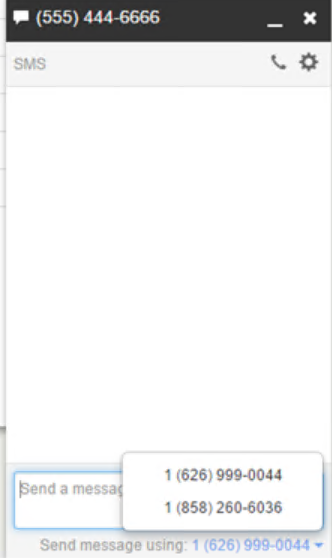
4. If a user has multiple SMS numbers, they will have the ability to select which number to send from.
Starting a Chat conversation
1. Search for a user via the Contact dock and select the chat icon.

2. Enter your message in the message composition field and hit enter.

Inbound SMS Chat Notification
There are multiple notifications configured for inbound SMS/Chat.

3. Browser notification, even when you’re not active on the portal screen.

4. Chat box will turn green when a new message is received

Chatting with a User who is Offline
1. If a user is not currently logged into the portal, you can still send a chat and they will be notified upon their next login. When a user is logged into the portal and has chat enabled, you will now see a blue status indicator next to the user along with their phone status indicator.

2. There is also an indicator within the chat composition box.

Missed Messages Notifications
1. Notification of missed messages will now appear on your user account when you log in.

2. You can see your Chat and SMS Message history by selecting Messages from your profile drop down, and then selecting “Chat and SMS”.

3. A list of all conversations will appear, with the new messages being bolded.

SMS/Chat History Feature
Chat history can be viewed by selecting Messages from the profile dropdown, and then selecting “Chat and SMS.” There are multiple options.
1. In the Message list view, you can Reply to a message, which will open the chat box.

2. You can delete a message.

3. By clicking on the message itself you can view the specific message chat history with the option to reply, as well as the contact information of the person who sent the message.

4.If the sender is in your contacts, any contact information you have entered in the system will appear here. From the contact info, you can call the number that sent the message and Turn Off Notifications or Delete the Conversation from the settings cog. With the alternate contact information, you can send a new SMS/Chat to one of the other contacts numbers or send a new email.

5. If the sender is not in your contacts, you will see the option to call the sender, Turn off Notifications or Delete the conversation.

6. The View All button will return you to the Chat and SMS history page.

7. The New Conversation button will open a new chat box.

SMS Usage Stats
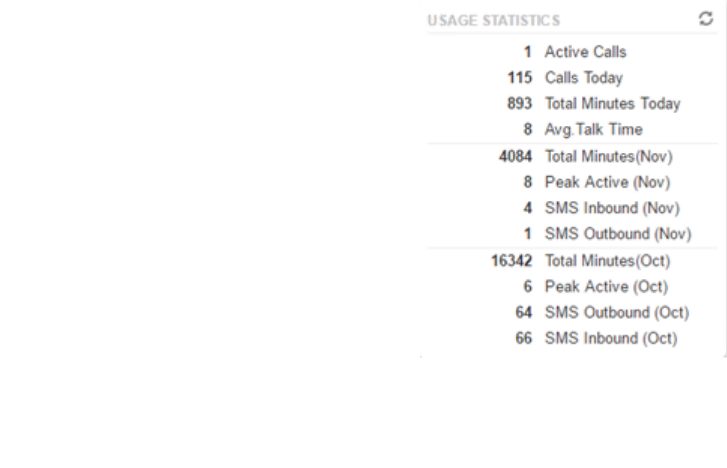
1. With SMS enabled and at least one user enabled for SMS, SMS usage will be displayed on the Office Manager scope home page.