.png)

This article will show you how to configure the Netgen Fax ATA for use on the Briva Voice T38 IP Fax platform.
Netgen HX422 Configuration Guide
1. Power on the device and connect the PC port to your internet switch or router.
2. The device will automatically get an IP from your router via DHCP.
3. Find the devices IP address. You can connect a handset to the phone port and dial # # to have the device read it to you.
2. The device will automatically get an IP from your router via DHCP.
3. Find the devices IP address. You can connect a handset to the phone port and dial # # to have the device read it to you.
4. Browse to the IP of the device and login as an admin and use the default password, which is on the back of the device.
5. Click on the Basic menu option select SIP.
6. Complete these fields and click Save.
5. Click on the Basic menu option select SIP.
6. Complete these fields and click Save.
- Registrar Server: sbc.simplelogin.net
- Proxy Server: sbc.simplelogin.net
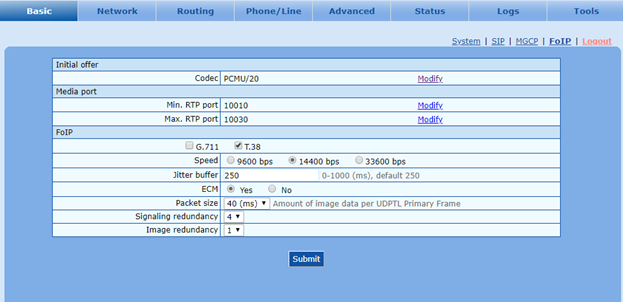
7 Next go to FoIP page, complete these fields and click Save.
- Max fax rate: select 14400bps
- ECM Mode: select Yes
8. Click on the Phone/Line menu option.
- Phone Number: Account_ID
- Display name: Account_ID
- Password: Account_Password

